
Short-Term Bookings
A booking reserves a bookable space — a meeting room, an event hall, a short-stay unit — for a fixed window of time. This article shows you how to create one, walk it through approval to Confirmed, and understand exactly when REDA raises (and deletes) the booking's invoice. It also explains the double-booking rules that decide whether two reservations can share a space, so you'll know in advance why REDA accepts some dates and blocks others. No prior REDA experience is assumed — every term is defined as we reach it.
Access you'll need. Creating and editing bookings requires the REDA - Booking Admin permission set. The REDA - Booking Read Only set can view bookings but not change them.
What a booking is
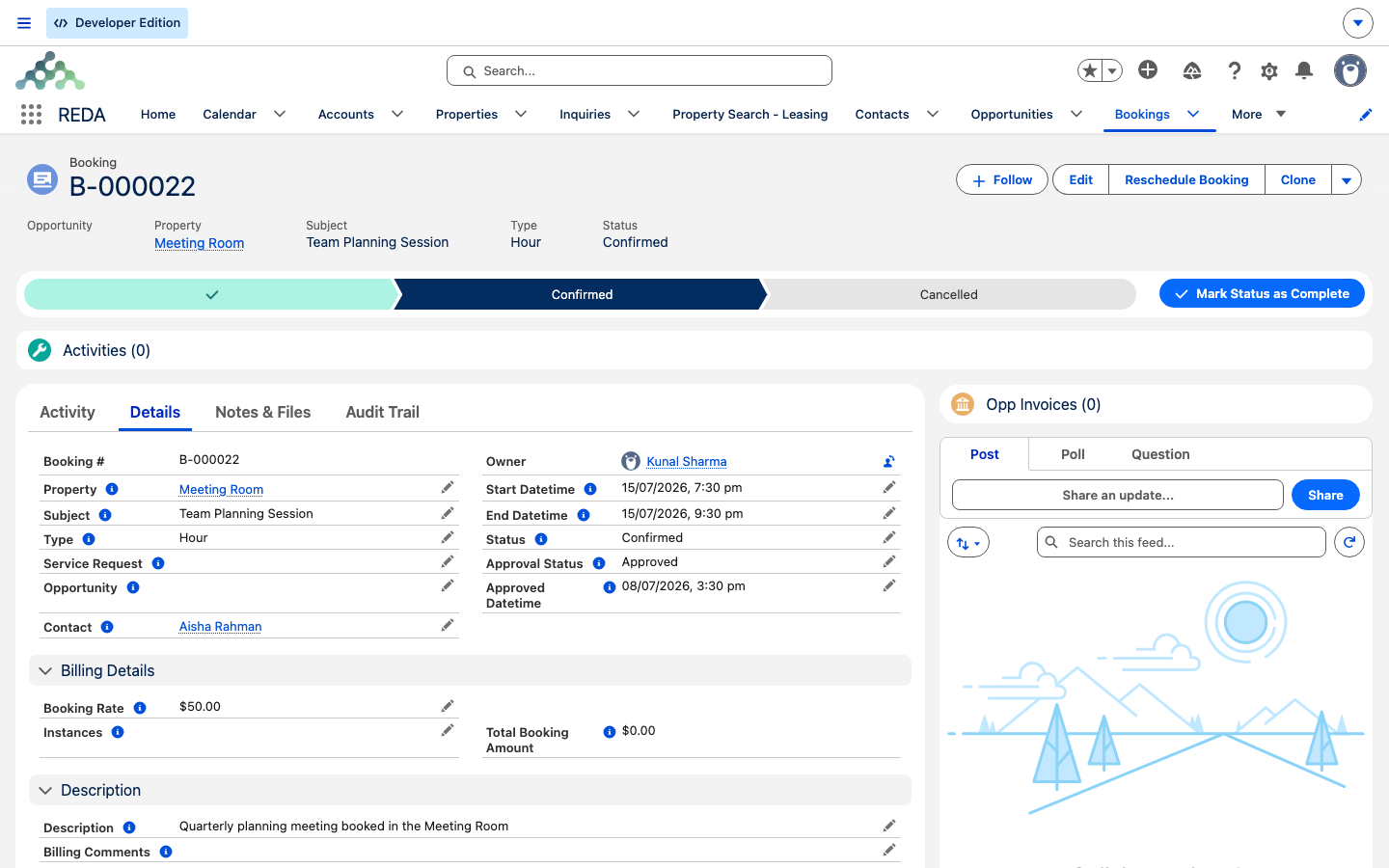
Each booking is a single record on the Bookings tab, numbered B-000000. It captures four things: which space is reserved (the Property), when (the start and end times), how much it costs (a rate multiplied by a count of instances), and whether to bill for it. A booking is not a lease and it never becomes one — it is a self-contained reservation with its own short approval path, shown across the top of the record as the Booking Journey.
Before a space can be booked at all, it has to be set up as bookable. That means three things are in place on the property:
Creating a booking
There are two ways in. The quickest is the Book Property screen, which shows the space's own available slots — the days and times its booking calendar allows, with any already-taken windows removed — so you pick from what's genuinely free instead of guessing dates. You can also start a booking straight from the Bookings tab, or raise one from the lease you're billing against with the New Booking action. Whichever route you take, you're filling in the same essentials:
You can also link a Contact (who the booking is for) and a Service Request (the request that prompted it), and add a Subject, Description, or Billing Comments — the last of which is copied onto the invoice if one is raised.
Walking the booking through approval
A booking carries two separate states. Approval Status tracks the sign-off ladder — Draft (the default) → Submitted → Approved — and Status tracks the reservation itself — Draft → Confirmed → Cancelled. The two work together through two gates you'll meet in order.
First, to mark a booking Approved, its Approved Datetime must be filled in. Try to approve without it and REDA stops you:
Second, you can only set the reservation to Confirmed once its approval has landed on Approved. Confirm too early and REDA responds:
So the full path is: create the booking, submit it and approve it (stamping the approved datetime), then set the Status to Confirmed. Anyone with the Booking Admin permission set can move these states — REDA doesn't impose an approval queue, so who signs off is your team's own process.
Double-booking protection
Every time you save a booking, REDA checks the window against all other reservations on the same property — and blocks the save if they collide. The one exception is a Cancelled booking, which never blocks. Everything else holds its space, including a Draft — an unconfirmed reservation still keeps the room off the market until you cancel it.
How "collide" is judged depends on the booking type:
When a save is blocked, REDA shows the same message from every entry point:
This table shows the rule at work:
| Existing booking | New booking | Collide? |
|---|---|---|
| Day, Mar 3–4 | Day, Mar 4–5 | Yes — day bookings sharing any calendar date collide |
| Day, Mar 3 09:00–12:00 | Day, Mar 3 14:00–17:00 | Yes — hours are ignored for day bookings |
| Hour, Mar 3 09:00–10:00 | Hour, Mar 3 10:00–11:00 | No — back-to-back hourly bookings are fine |
| Hour, Mar 3 09:00–11:00 | Hour, Mar 3 10:00–12:00 | Yes — real time overlap |
| Cancelled (any) | anything | No — cancelled never blocks |
| Draft, Mar 3 | Day, Mar 3 | Yes — drafts hold the space |
Confirm to invoice
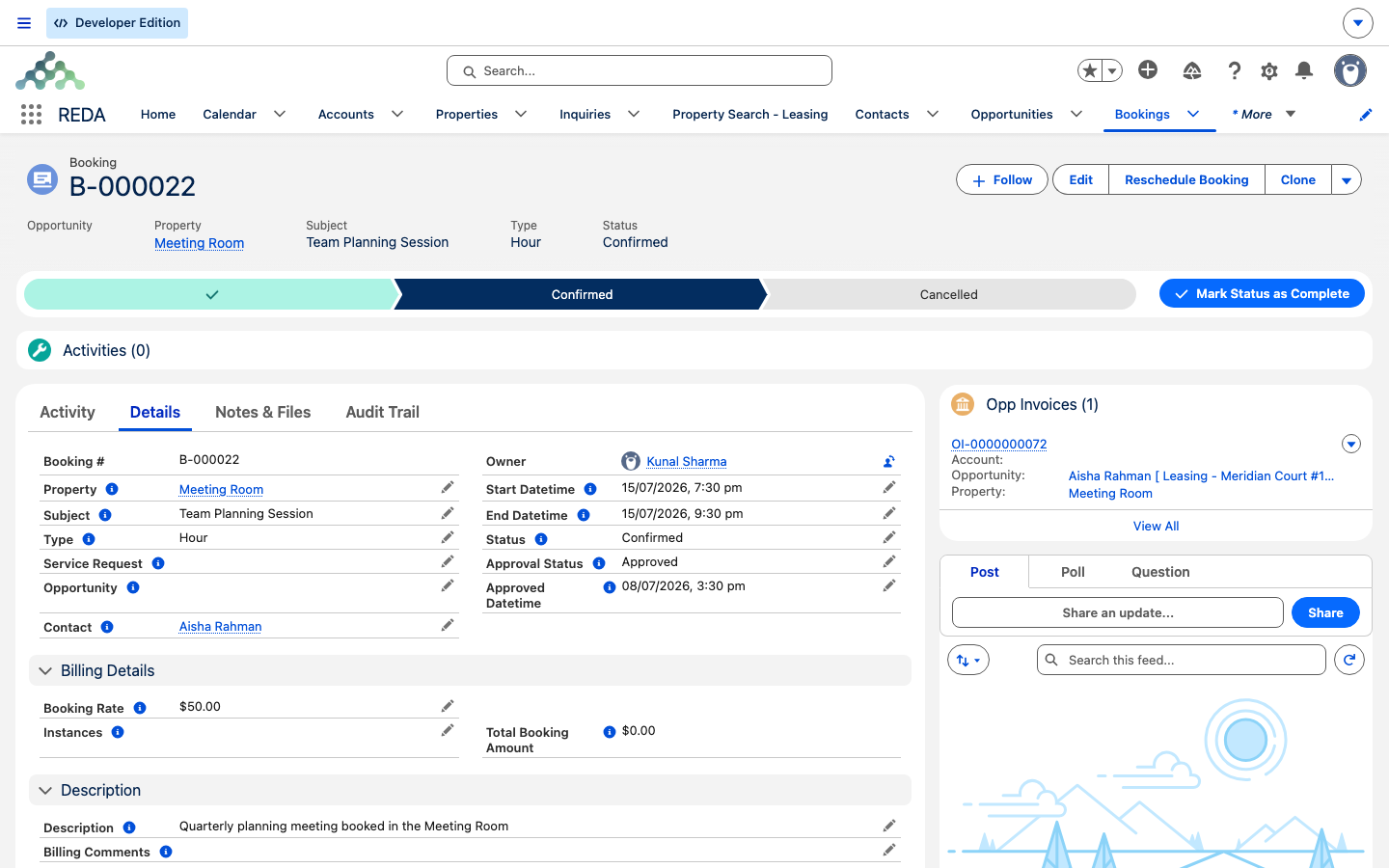
Confirming a booking is the moment it can become billable. REDA raises a booking invoice only when all four of these are true:
Confirmed.When all four hold, the invoice REDA creates carries:
| On the invoice | Where it comes from |
|---|---|
| Amount | The booking's Total Booking Amount (rate × instances) |
| Charge code | The Booking Charge Code on the property's Leasing Rule |
| Billing Date | Today |
| Due Date | Today plus the charge code's payment grace days (today if none) |
| From / To dates | The booking's window |
| Account | The linked deal's account |
| Billing comment | Copied from the booking's Billing Comments |
The invoice is flagged as system-created and linked back to the booking, so you can always trace one to the other. For the wider picture of what an invoice is and how grace days work, see Invoices Explained and Charge Codes.
Cancelling and rescheduling
Setting a booking's Status to Cancelled does two things at once: it cancels the reservation's calendar entries, and — if a booking invoice was raised — it deletes that invoice.
When you only need to move a reservation rather than undo it, use the Reschedule Booking action on the booking record instead. On success REDA confirms:
Reschedule is also the right tool when a booking already has a calendar entry — try to schedule a second one for the same booking and REDA points you back to it:
Rescheduling re-runs the same double-booking check against the new window, so the same overlap rules apply. And when you raise a booking from a lease with New Booking, that deal has to be an approved, active one — otherwise REDA declines with:
Worked example: booking the meeting room
Harbour Tower Meeting Room #001 has a day rate of 500.00. A tenant wants it for two days. Here is how the whole reservation plays out:
| You do | REDA does |
|---|---|
| Create the booking: Type Day, Instances 2, Booking Rate 500.00 | Calculates Total Booking Amount 1,000.00 |
| Submit and set Approval Status Approved (Approved Datetime stamped) | Clears the approval gate |
| Tick Create Opp Invoice, link the lease, set Status Confirmed | Raises the 1,000.00 booking invoice (due today plus the charge code's grace days); confirms the calendar entries |
| Try to book the afternoon of day two as a second day booking | Blocks the save: "Sorry, the selected property is not available for provided dates/time." |
| Later, cancel the two-day booking | Cancels the calendar entries and deletes the 1,000.00 invoice |
Contrast the day rule with hours: an hourly room booked 09:00–10:00 and then 10:00–11:00 the same day saves cleanly, because back-to-back hourly bookings don't overlap.
Reference: statuses and fields
The reservation's Status and its Approval Status are two independent ladders:
| Ladder | Values | What it tracks |
|---|---|---|
| Approval Status | Draft (default) → Submitted → Approved → Rejected | Sign-off; Approved needs an Approved Datetime |
| Status | Draft → Confirmed → Cancelled | The reservation; Confirmed needs Approval Status = Approved |
The fields you'll work with most:
| Field | What it holds | Notes |
|---|---|---|
| Booking # | The record's number | Auto-assigned B-000000 |
| Property | The bookable space | Required; must be available for booking |
| Opportunity | The related lease or deal | Needed to raise an invoice |
| Contact / Service Request | Who it's for / the request behind it | Optional links |
| Start Datetime / End Datetime | The reserved window | Overlap-checked on every save |
| Type | Day or Hour | Must match a type the property's calendar allows |
| Status | Draft / Confirmed / Cancelled | No default — set it explicitly |
| Approval Status | Draft / Submitted / Approved / Rejected | Draft is the default |
| Approved Datetime | When it was approved | Required before Approved |
| Booking Rate | Per day or per hour | From the property's rate |
| Instances | Number of days or hours | |
| Total Booking Amount | Rate × Instances | Calculated; becomes the invoice amount |
| Create Opp Invoice | Whether to bill this booking | Off by default |
| Billing Comments | Note carried onto the invoice | Optional |
Where to go next
- Calendar Slot Rules — the availability grid behind every booking calendar.
- Blackouts & Slot Exceptions — how to close a space for holidays or downtime.
- Invoices Explained — what the booking invoice is, and how due dates are set.
- Charge Codes — where the booking charge code and its grace days come from.
- Leasing Rules — the rule that carries the Booking Charge Code.
- Making a Property Leasable & Bookable — turning a space on for bookings.
Frequently asked questions
Another non-cancelled booking on the same space overlaps your window. REDA shows: "Sorry, the selected property is not available for provided dates/time." Day bookings collide on any shared calendar date; hourly bookings collide only on real time overlap. Remember that a Draft booking still holds the space — cancel it to free the window.
Its approval hasn't landed yet: "Please submit the booking for approval before confirming the booking." Move the Approval Status to Approved first, then set the Status to Confirmed.
The approval date is missing: "Please provide the Approved Datetime prior approving the booking." Fill in the Approved Datetime, then set Approval Status to Approved.
An invoice is raised only when all four conditions hold: the booking is Confirmed, Create Opp Invoice is ticked, an Opportunity is linked, and the property is set to create booking invoices. If any one is missing, no invoice is created.
It is deleted, and the booking's calendar entries are cancelled. The invoice is removed rather than credit-noted, so capture anything you need for your records before cancelling.
Any non-cancelled booking holds its space — Drafts included — so an unconfirmed reservation still keeps the room off the market. Only a Cancelled booking never blocks. Cancel the draft to release the window.
Yes — use Reschedule Booking on the record ("Booking is rescheduled successfully."). The overlap check runs against the new window just as it does on any save.
Was this article helpful?