
 REDA Financials
Winter 2026 · v1.62000
30 Oct 2026
REDA Financials
Winter 2026 · v1.62000
30 Oct 2026
REDA Financials AI 1.62000 — Winter 2026
REDA Financials AI · 1.62000 · Winter 2026 · 2026-10-30
Upgrade now — production · Install in sandbox
No installation password is required. Salesforce sign-in, package licensing and permissions still apply.
This release adds built-in Plaid bank feeds and lets your organisation supply its own AI and exchange-rate connections. It also improves budget tracking, invoice matching, payment application and banking defaults. The main release includes the improvements from the patches issued after the previous main release, so customers who skipped those patches should use the full upgrade checklist.
Before upgrading: arrange your Anthropic/Open Exchange Rates accounts if you use those services, check native package licences, and plan the layout and permission updates in the administrator guide. Existing REDA-issued activation keys are no longer the connection setup for AI or exchange rates. Ordinary accounting posting is separate from those provider credentials.
Install, assign access and complete the upgrade

Use the Upgrade now — production or Install in sandbox link above for REDA Financials AI 1.62000 (Winter 2026), released 30 October 2026. No installation password is required for this version. These links identify a package version, not one particular customer's organisation. Your Salesforce sign-in determines where installation happens. New releases follow the password-free package policy; this does not remove Salesforce login, package licensing or user permissions.
- Open the link for the environment you intend to change.
- Sign in as its Salesforce administrator. If you have multiple organisations, check that you selected the correct one before continuing.
- On the installation page, confirm the package name, publisher and new version against the release article. For an upgrade, also check the version being replaced.
- Select Install for Admins Only, the setup approach used by this guide. Role-based access is assigned after installation. Do not use broad access as a workaround for an unidentified permission problem.
- Review the package's terms and any external-site approval presented by Salesforce. For Plaid, see the external-site names and addresses in the detailed upgrade guide.
- Click the Install or Upgrade button shown by Salesforce. If processing continues in the background, wait for Salesforce's completion notification; do not repeatedly start installation.
- Return to Setup → Installed Packages and confirm that the new version appears. Record it in your upgrade checklist.
- Continue with the steps below. An installation-success message does not by itself confirm that custom layouts, connection settings and ordinary users are ready.
Give users licences and the appropriate role
Native Salesforce package licensing replaces the old REDA Financials AI checkbox on User records.
- In Setup → Installed Packages, open the Financials package's Manage Licenses link if this is a user-licensed installation.
- Review the available and assigned licences. Use Add Users to select the people who need package access, then complete the assignment. Site-wide licensing can present differently; do not create an old custom-checkbox assignment to compensate for the absence of an individual-seat list.
- In Setup's Quick Find, type Permission Sets, then select it.
- Open the Financials permission set appropriate to the user's work. Use your existing original or v2 role family consistently; do not assign every role to every user.
- Click Manage Assignments, then Add Assignments. Select the intended users and finish the assignment flow. Confirm the users appear in the assignment list.
- Retain your organisation's normal access to apps, tabs, records and record types. A package licence and a field permission do not grant access to every record.
Packaged permission sets can receive updates. Copies or custom permission sets created by your administrator do not inherit those updates. Salesforce explains this distinction here. For custom sets, follow section 5 of the detailed upgrade guide and its field/access inventory.
Remove the retired User checkbox from the User layouts where your organisation placed it. Remove its screen placement only; do not clear historical user data or delete a managed field.
Complete the remaining administrator steps
Continue with the full guide for assigned layouts, new fields and actions, related lists, custom permissions, missing picklist values, provider connections and ordinary-user verification. Installing the package alone does not complete these steps.
Installing and upgrading REDA Financials — administrator guide · Connections: your AI, exchange-rate and Plaid accounts · Connect bank feeds with Plaid
New and changed since 1.61014
| Change | What your team will notice | Setup or review |
|---|---|---|
| 1. Purchase-order budgets | Draft and posting checks refresh the budget result. Bypassing controls still tracks commitments and actuals; reversing an order releases its recorded commitment. | Add read-only Budget Committed and review the approved bypass process. |
| 2. Purchase-invoice budgets | A matched invoice uses the shared budget-posting process without a second block for an already committed order. A bypassed order carries its bypass to the invoice. | Review Bypass Budget Controls permissions and optional form placement. |
| 3. Consistent budget comparisons | Budget checks and analysis use GL Account plus Ledger dimensions. Analysis-only dimensions do not divide the control amount. | Confirm the selected Budget and the dimensions used by your process. |
| 4. Budget Analysis | Figures use entity currency and the correct dimension rows, with access checks and keyboard behaviour improved. A saved/copied PO Budget remains available even when hidden from the form. | Verify with the team's intended role and a representative budget. |
| 5. PO matching | Matched invoice lines retain the order's price. Editing a matched line excludes its own quantity from the already-invoiced total. | Review a partially invoiced order in your sandbox. |
| 6. Receipt and memo applications | Receipts, disbursements, customer credits and vendor memos share a consistent available-balance calculation and Ledger-dimension/product matching. | Internal application keys need no user input. Remove unused invoice matching controls from customised layouts. |
| 7. Automatic application | The four application processes use consistent balances and refusal/rollback handling, including bulk work. | Check existing Operations schedules and outcomes; do not infer a new schedule was installed. |
| 8. Currency and tax during application | Application calculations consistently handle currency precision, tax/product balances and Ledger dimensions. | Review relevant multi-currency application examples in your sandbox. |
| 9. Audit records | Audit writing handles missing/unknown action information more consistently and retains useful batch summaries. | Check the carried-forward Tax Calculation picklist value if missing. |
| 10. Asset batch failures | Refused asset-posting lines are recorded as failures alongside the batch summary. | Use the error details to resolve the specific refusal. |
| 11. Clearer refusals | Forms and posting results show readable business messages and actual substituted values; banking validations and application prefixes have translated wording. | Use the current message when contacting support. |
| 12. Invoice and banking presentation | Invoice figures have explanatory help, reconciliation statuses/types use translated labels, and future-due wording is corrected in the translated interfaces. | Read the current field help and translated status labels. |
| 13. Native package licences | Salesforce package licensing replaces the old custom User activation checkbox and REDA-key seat/document enforcement. AI usage reporting remains. | Assign native licences and roles; remove the retired checkbox from custom layouts. |
| 14. Your AI and FX accounts | Connections provides Save, Test connection and Disconnect for your Anthropic key and Open Exchange Rates App ID. | Configure and test each service. Retire the AI Model Tier setting; Economy/DeepSeek instructions no longer apply. |
| 15. Account-ledger control flag | The ledger normally uses the stored control-account status recorded on accounting transactions. | Verify older data has the required stored values; an approved backfill may be needed. No historical repair is included merely by installing. |
| 16. Connect and manage banks | Built-in Plaid uses your organisation's provider account. Bank Accounts gain Connect Bank Feed; feed records gain Manage Bank Feed. | Add actions, permissions and endpoint activation checks. Connect each bank, then explicitly sync or schedule. |
| 17. Bank-feed imports | Transactions are tracked by provider IDs and organised into the entity's accounting periods or uncovered gaps, with handling for updates/removals and protected reconciled statements. | Review the first import, Import From Date, Bank Feed link and statement related list. Date-range requests are limited to 31 days each. |
| 18. Feed history and volume | Imports maintain balance relationships and can continue across jobs for larger volumes. An incomplete continuation chain produces an actionable Operations outcome. | Read Last Sync Message and the overall run result; do not equate a started job with a completed import. |
| 19. Invoice due dates | With no applicable payment term and no explicit due date, a new invoice defaults to due on its invoice date. | Update internal instructions that assumed an automatic 30-day term. Existing invoices are not rewritten. |
| 20. Parent-territory periods | Receipts, ageing and next-draft reconciliations use the appropriate parent-territory period for child-territory entities. | Verify your territory/period setup for the affected entity. |
| 21. Cash GL follows bank defaults | A blank Cash Account defaults from the actual selected bank. Changing the bank in the payment wizard refreshes its Cash GL default and balance, while preserving an intentional user override. | Review the final bank and GL before completing payment. Earlier saved accounting is not automatically repaired. |
| 22. Entity-specific bank checks | Disbursements, payment batches and invoices refuse a bank belonging to a different entity. | Review integration/import mappings and resolve the specific wrong-bank selection. |
| 23. Help and translations | Field guidance, tax/asset terminology, actions, bank feeds and Connections have updated wording across supported languages. | Review internal training and preserve deliberate subscriber-specific text. |
Included from the intervening patches
| Area | Cumulative improvement | Upgrade attention |
|---|---|---|
| E-invoicing and application screens | Send/Resend and repost retry fixes, Trail access, shared application tables and related auto-apply fixes. E-invoice trail creation requires a Posted invoice. | Check custom automation that previously invoked creation for draft invoices; update the workflow deliberately. Check the actual refusal or result. |
| OCR and configurable prompts | Multi-attachment/XML extraction work, active ordered prompts and clearer party-exemption handling. | Add three missing AI Prompt document types where necessary. Review preserved subscriber prompt text against the supplied defaults; keep customer customisations. |
| Discount GL selection | Sales Invoice Line and Recurring Template Line can use a line-level Discount GL Account. | Add the field and access only for roles/forms that use the override. |
| Recurring transactions, documents and ledgers | Recurring generation repair, recipient-language behaviour for PDFs, corrected outstanding-balance results and Budget Entry Impact Preview. | Recheck scheduled generation, recipient language and ledger examples. The known number-separator limitation in document totals remains unchanged. |
| Tax and withholding | Tax-side/registration resolution, cash-basis tax-point support, withholding thresholds and settlement corrections, seed improvements and product-profile controls. | Use current tax/WHT field placements, exact added picklist options and approved configuration; package installation does not determine the customer's tax obligations. |
| Saved sales withholding estimates | Saved component details, source links, calculation base/rate and invoice/line tentative totals explain the sales estimate. | Add the related lists, list columns and read-only totals. Estimates do not create sales withholding ledger postings; provider submission remains separate integration work. |
| Ledger migration | Controlled direct-ledger import fields and source option, alongside the stored control flag. | Use only the separately approved migration procedure and permission set. Do not grant migration access to every accounting user. |
Administrator work after installation
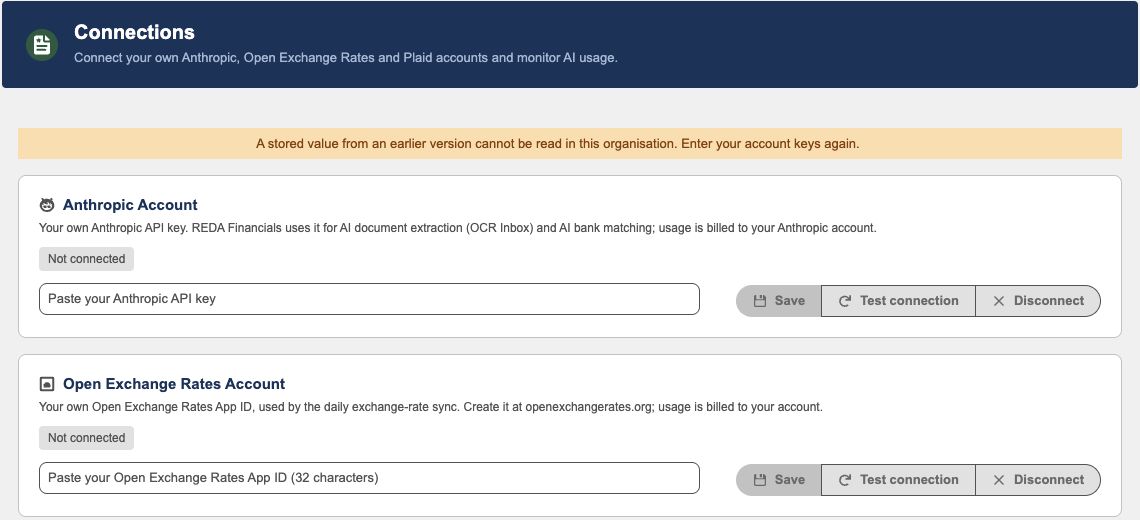
Follow the Installing and upgrading REDA Financials administrator guide in order. It explains how to find assigned layouts, drag supplied fields/actions into place, set read-only properties, update custom permission sets, select list columns, verify record-type choices, configure Connections and test as ordinary users.
The cumulative inventory includes 39 current packaged fields introduced after the prior main boundary. This is not a requirement to add 39 editable fields: three belong to configuration metadata, several are internal keys or stored snapshots, and many are read-only calculations. The matrix identifies each field's intended treatment.
Seven added choices on existing picklists require a missing-value check for older subscribers: Expense Receipt, Bank Statement and Other for AI Prompt Document Type; Tax Calculation for Audit Log Action; Subtract Matched Prior Tax for Tax Calculation Component Base Formula; Sales Deferred for Tax Type GL Mapping Side; and Migration for Accounting Transaction Source Type. The upgrade guide gives exact API names, labels and click-by-click instructions.
Existing customer connection values remain subscriber-controlled. Fresh installs start without connection credentials. No installation password is required for 1.62000; use the verified production or sandbox Upgrade now link for the correct product and edition. Salesforce sign-in, native licensing and role permissions still apply.
What this release does not change automatically
Installation does not rewrite existing invoice dates, repair historical accounting or complete your bank reconciliation. Bank coverage and available history depend on your provider and institution. Sales withholding estimates remain reference information; related ledger posting and e-invoice provider integration require their separately documented workflows.