
Email-to-Invoice Automation
The endgame of invoice automation: vendors email their bills to a dedicated address, and drafts appear in REDA Financials — vendor matched, lines coded, high-confidence ones already created — while your team reviews instead of types. Here's the pipeline and the setup.
Access you'll need. Working OCR items requires the Accounts Payable v2 permission set (AP clerks & managers) or Accounting Admin v2 (system administrators). The Accounting Controller v2, Accounts Receivable v2, and Read Only v2 sets can view items but not act on them.
Current main release: 1.62000
OCR and configurable prompts. Multi-attachment/XML extraction work, active ordered prompts and clearer party-exemption handling. Add three missing AI Prompt document types where necessary. Review preserved subscriber prompt text against the supplied defaults; keep customer customisations.
Release notes and cumulative changes · Detailed installation and upgrade steps
The pipeline, end to end
An email arrives with supported invoice attachments
Each attached PDF, JPG, JPEG, PNG, GIF or WEBP file becomes a separate Pending item in the OCR Inbox. File extensions are case-insensitive. Attach the actual files: a download link or a picture pasted into the email body is not an attached invoice. An email containing only XML creates no intake item.
A structured XML companion belongs with one document
When an email contains exactly one supported document, its XML attachments are stored with that document and can be read together during extraction. With two or more supported documents, the XML files are not paired or attached to the inbox items. Send one invoice document and its XML per email when the XML must be used.
The vendor is matched and the queue is processed
A sender email matching a Contact can suggest the vendor Account. Extraction can also interpret a forwarded message. The OCR Document Processing loop picks up Pending items; a sufficiently confident result creates a draft Purchase Invoice, while other extracted items wait for human review. Check the suggested vendor, entity, lines and totals against the original file before posting.
Setting up the address (administrator, once)
An email service is the Salesforce address that receives documents for the package. The package upgrade supplies the handler, but it does not create your organisation’s service address, forwarding rule or allowed-sender policy. An administrator must configure and test those items. Existing customers should review the same settings, especially attachment conversion for XML.
refin.OCREmailHandler. This exact name is needed only for this administrator selection.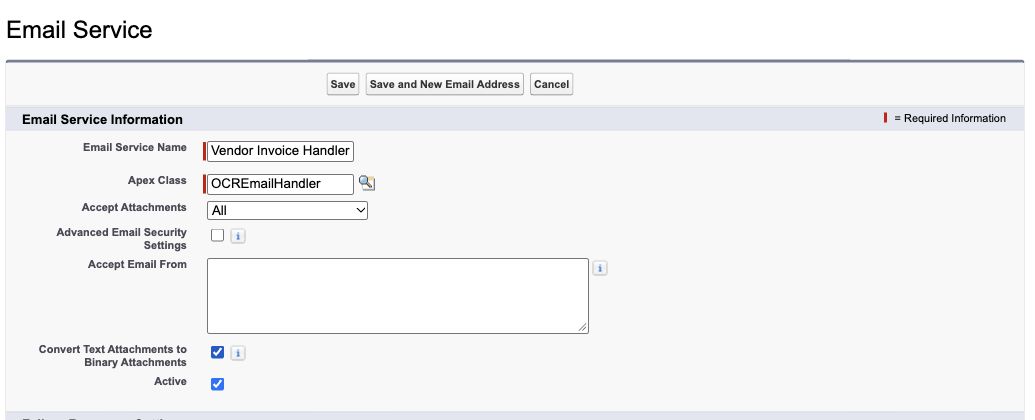
For the Salesforce screen and attachment settings, see Salesforce — Define Email Services.
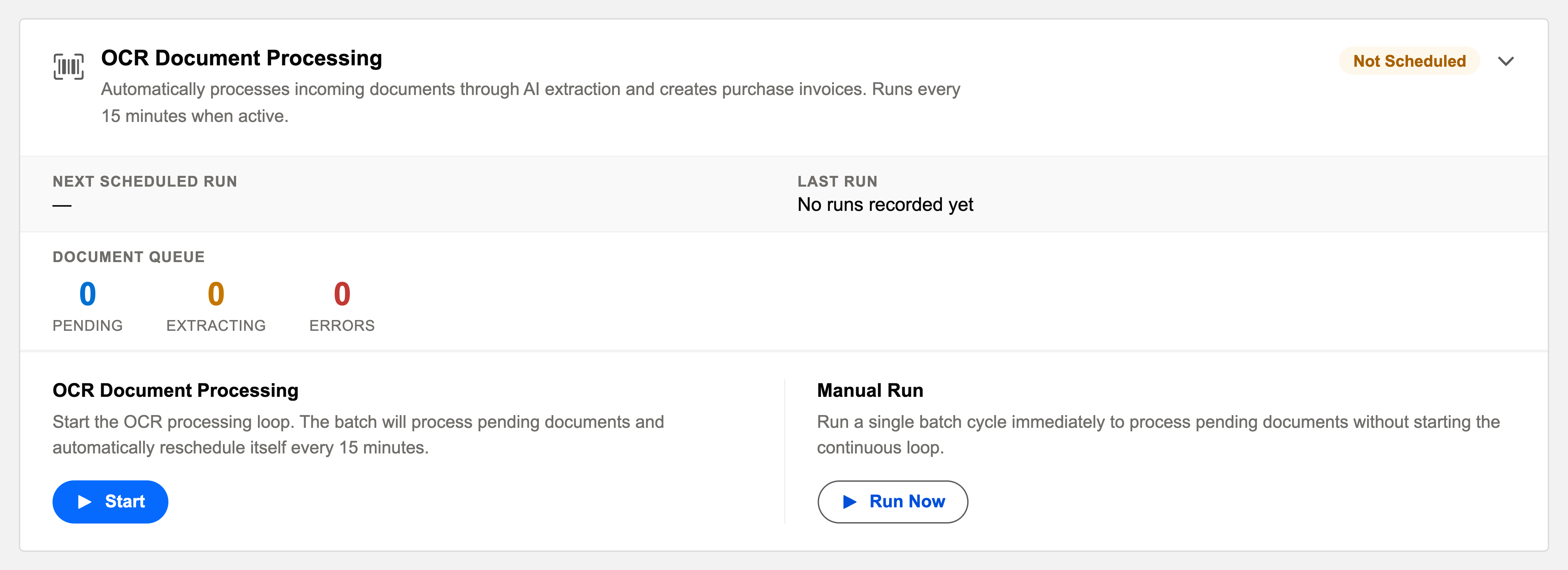
The control loop for going hands-free
- Start conservative: a high auto-create threshold routes almost everything through review; lower it as spot-checks stay clean.
- Review auto-created drafts at posting — automation moved the typing, not the accountability.
- Financials retains AI usage reporting. In 1.62000 the old custom document-cap enforcement is retired; provider billing, funding and service limits belong to your organisation’s provider account. Check the reporting period and the provider’s usage/billing view. See AI usage reporting and provider billing.
What each intake record preserves
Each supported invoice attachment creates its own intake record. XML companions add files to the same record only under the one-document rule above; they do not create extra invoice items.
| What is preserved | What to check |
|---|---|
| Files | The original PDF/image, plus eligible XML companions, are stored on the intake record. Open its Files related list and compare the filenames with the message. |
| Sender and vendor | Sender Email, Sender Account and Vendor Match support identification. A contact match suggests an account; reviewers must still confirm it. |
| Email details | Subject and body are preserved within their field limits: 255 and 32,768 characters respectively. Forwarded-message analysis can update the identified original sender. |
| Source and receiving address | Source File identifies the document; Receiving Email identifies the service address used. |
| Starting state | Status Pending, operation Automation and document type Purchase Invoice. Processing and review update this state later. |
Confirm receipt in the queue
Do not rely on an acknowledgement email as proof of intake. The installed handler returns a processing result to Salesforce; that is not a guarantee of a successful-delivery reply to the sender. Verify the OCR Inbox item, its attached files and its status. If nothing appears, check the service/address activation, allowed sender, forwarding route and attachment settings before resending. An XML-only message or unsupported attachment does not create an invoice item. Some legacy diagnostic wording still mentions “PDF”; the supported attachment list above describes the current email channel.
Examples at Meridian’s intake address
| Message | Expected intake | Review |
|---|---|---|
| One vendor invoice PDF | One Pending item | Confirm vendor, entity and totals; the resulting invoice remains a draft. |
| One JPG invoice photo | One Pending item | A supported image can queue; poor legibility can still require a clearer copy. |
| One invoice PDF + its XML | One item with both files | Confirm the XML appears in Files and belongs to this invoice. |
| Two invoice PDFs + one XML | Two items; the XML is not paired | Ask for one document plus its XML per email when the XML is required. |
| Only XML | No intake item | Ask for the matching invoice PDF or supported image with the XML. |
Common mistakes to avoid
| Mistake | Consequence | What to do |
|---|---|---|
| Assuming “no reply” means no receipt | Resending can create duplicate intake items and additional provider processing | Search the OCR Inbox by subject/filename first. |
| Sending a link instead of a file | The handler has no supported attached document to queue | Attach the actual PDF/image; use one invoice plus XML per email. |
| Leaving text-to-binary conversion off | An XML delivered as a text attachment may not reach the document record | The administrator reviews Email Services and repeats a one-document-plus-XML test. |
| Sending every general AP email to intake | Statements and promotional attachments clutter the queue and can consume provider usage | Route vendor invoices deliberately and review Errors daily. |
Where to go next
- OCR Inbox & Document Queue — where the emails land.
- Creating an Invoice from OCR — the review half.
- Operations Scheduler — the loop's controls.
Frequently asked questions
Yes. Email accepts attached PDF, JPG, JPEG, PNG, GIF and WEBP files. This is separate from the manual invoice-form uploader, whose file picker currently offers PDF, JPG, JPEG and PNG.
No. Email intake needs a supported PDF or image. Send one invoice document and its XML together; with several documents, XML attachments are not paired.
The custom REDA document cap is retired in 1.62000. Intake is still counted for reporting; provider billing, funding and rate limits belong to your organisation’s account. Do not wait for a month reset to resolve an error.
Confirm the OCR Document Processing loop is started, allow its 15-minute cycle and inspect the actual job or document error if it does not progress. Receipt alone does not mean extraction completed.
Do not assume so. Confirm receipt and outcome in the OCR Inbox. Any sender notifications also depend on your Salesforce email-service configuration and mail route.
This channel creates Purchase Invoice intake records. Route vendor invoices here and review the extracted result; do not use it as a general correspondence or bank-statement mailbox.
Was this article helpful?